IDL_HS Version 4: User's Guide
James Tappin
The aim of this guide is to provide an introduction to the operation
of version 4 of the HISCALE/EPAM display environment.
Initial development was on Solaris systems, the current development
platform is Linux. All development has been done with IDL version
5.2, 5.4 and 5.5. The system should work on most Unix flavours supported
by IDL. VMS support will need someone with DCL expertise to create
a script to run the system. Support for Windows or Mac would need
major work.
This document refers to the fifth full release series (Versions 4.6.x:
Ida).
- Time-series plots (rate datasets):
- HISCALE and EPAM rates data.
- ULEIS matrix rates data.
- HISCALE and EPAM track data.
- HISCALE and EPAM MFSA 32-channel data1.
- Merged magnetic field data.
- UDS data. This includes any data stored in a reasonable ASCII format,
so that a spec file can be written for the file.
The calculation of ratios and/or spectral indices between different
channels is supported, although in a different (and I hope better)
way from version 3.
Channels of different types may be combined in the same dataset (so
for example you could plot an EPAM composition channel, a ULEIS channel
and the ACE magnetic field magnitude on the same page).
- Pitch-angle plots for HISCALE, EPAM and ULEIS rates data (pad datasets).
The layout engine is much improved compared with version 3.
- Spectrum plots (spect datasets):
- HISCALE and EPAM rates data.
- ULEIS matrix rates data.
- HISCALE and EPAM track data.
- HISCALE and EPAM MFSA 32-channel data.
As with rates datasets, different types of data can be mixed in a
single dataset.
- PHA Matrix plots for HISCALE and EPAM data (matrix datasets).
The main change from version 3 is that it is now possible to sum
(or average) matrices. It is also possible to select non-square subfields
to display.
- X-ray flare activity plots (xflare datasets).
It is now possible to select Bartels or Carrington rotations and longitude.
Histograms of the longitude and/or time distribution can be added
to the plots.
- Dynamic spectrum datasets, similar to those in the old fortran software;
but now including Track and Uleis data.
- An HSIO file browser.
- A system of resource files to allow customization both by site and
by user. It is possible to support multiple platforms from a single
software tree.
- GUI to control it.
- A CLI / Scripting interface.
- A data editor to allow the removal of telemetry errors and calibration
spikes.
- CDF data. Because it isn't widely or regularly distributed to the
team and it contains less channels and at a lower time resolution
than the UDS data.
- MOVIE. Because it isn't very useful, PAD plots provide a much more
quantitative measure of anisotropy. Also the way that it works was
restricted to 8-bit display depths.
The conceptual structure of version 4 is very different from that
of its predecessors, so a brief description will probably help you
to understand how to do what you want to do. For what it's worth,
most of the code is implemented in object-oriented IDL, but unless
you are developing software, that need not concern you. However the
organization should.
In the earlier versions, there were several display programs which
shared certain properties (time range etc.) while each had its own
data storage arrays (apart from plot_rates and movie which shared
many arrays). The data were associated with a program and as a result
looking at a new set of data with a particular program or changing
a shared property destroyed the data previously read.
In version 4 the new pointer and object capabilities of IDL version
5 have been used to break this limitation. This is done by introducing
the concept of a dataset, which has its own properties and
is associated with a form of display (time-series, spectrum, PAD distributions
etc.) but which is independent of all other datasets. Each dataset
is then subdivided into streams which correspond to a single
channel for the old plot_rates and plot_pad programs,
and to a head or species in plot_spect or plot_comp.
In the case of pad and spect datasets, the streams are grouped into
panels. The major advantage of this scheme is that it allows two major
new freedoms:
- It is now possible to combine data of different classes or from different
instruments on a single plot. This was the main reason for the development
of version 4.
- It is possible to have simultaneously present datasets of the same
type but with different data (including different time ranges, averaging
etc.).
To provide consistency and convenience, IDF information and plot settings
are shared between all datasets. However, information in a particular
stream that is derived from the IDF will not be updated when the IDF
is changed.
A dataset contains all the information needed to create a plot. It
also has internal flags to ensure that its status is correctly known
to the software. The easiest way to think of a dataset is as equivalent
to the old routines such as PLOT_RATES, except that you can have
multiple datasets of any one type. When it is created, a dataset can
inherit the "global" properties of an existing dataset2, but thereafter they are entirely independent entities.
In earlier versions of the software, each program was provided with
a list of channels (whether these be a LAN channel as in PLOT_RATES
or a head as in PLOT_SPECT). In version 4, the channel is replaced
by the stream. A stream contains the data for a channel and also the
IDF information relevant to that channel (e.g. the energy range and
background levels). In addition if a particular channel has different
sectoring or scaling options from the defaults for the dataset, then
the stream also stores these.
When data are read, the dataset controls the reading and then passes
the relevant bits to the various streams, this way we can separate
the data up without having to make multiple passes through each data
file.
Whereas previous versions had a single data directory which served
for all programs; version 4 has a number of data paths. These paths
are associated with the IDF settings and are real search paths. Thus
it is possible to have separate search paths for HISCALE and EPAM,
and for rates data and for track/pha data, and in addition these may
consist of several directories (e.g. your ULA and CUAF directories).
The plotting setup is very similar to earlier versions except that
the spool command is now defined in the setup menu and also there
are separate spool commands for printable and encapsulated files.
Internally, all times are now stored as julian-day numbers. Energies
are stored in MeV, but for any dataset3, display in MeV-based units or keV-based units is selectable.
The IDL_HS system is started via the idl_hs shell script.
When the package is installed, this should be linked to a directory
that is in user's paths. If it is properly configured, you should
simply be able to enter the command idl_hs and start the
system.
There are a number of options available to the command:
- -l
- Start in line mode (i.e. do not bring up the main control
menu). The equivalent environment variable setting is HS_MENU=NO
- -m
- Start in menu mode. (This is the default behaviour, but
can be used to override a line mode setting in the environment). Equivalent
environment variable setting HS_MENU=YES.
- -q
- Suppress IDL's compilation messages. Environment setting
HS_QUIET=YES.
- -v
- Display IDL's compilation messages (This is the default).
Environment setting HS_QUIET=NO.
- -n
- Do not initialize the system (i.e. do not create a master
hs_container object or start the menus). Only useful for testing
purposes. Environment setting HS_INITIALISE=NO.
- -8
- Use device, pseudo=8 rather than the default
of device, decomposed=0 as the option to allow colour tables
to work. Environment setting HS_BITS=8.
- -T
- Use device, true=24, decomposed=0 this setting
is sometimes needed on Solaris systems where direct colour is used
in preference to true colour by default. Environment setting HS_BITS=24.
- -R file
- Restore the environment from file.
This is a file saved via the ``Save All'' option. If file
was saved with an earlier version of IDL_HS then some structures
may have different definitions, this can normally be resolved by re-reading
the data of any datasets. As of version 4.3.0, the IDL_HS version
number is saved along with the environment and if there is a mismatch
an alert is given.
- -P path
- Add path to the IDL search path.
- -C
- Work around the IDL 5.5 little endian bug. If you are using 24-bit
colour on a little-endian unix like platform with IDL 5.5 there is
a bug that causes TV and related routines to swap blue and red (this
affects matrix dataset display). If you are affected then use this
option, or set HS_COLOUR_SWAP='YES' in your login files.
The command line options override any setting made by the shell environment
variables.
IDL_HS version 4 provides 3 different interfaces:
- The GUI interface. This is the normal interface for most users, and
should suffice for most normal purposes.
- A command-line/scripting interface. This allows the user to write
programs to do common tasks or to work over a slow network connection.
- The raw object methods, only really suitable for developers.
Compared with earlier versions, the menus of the GUI tend to be smaller,
and to generate more independent sub menus. Also the old click-to-switch-state
toggle buttons have been replaced by 2-element droplist menus. List
and table widgets are now extensively used to select datasets & streams.
Wherever possible menus are non-blocking so that you can use the command
line without destroying the menus. For some menus, mainly those that
are called from within object constructor methods, it is necessary
to use modal (and thus blocking) widgets to prevent control being
handed to the main event loop while the environment is in an unusable
state.
Generally speaking, the interface uses the following elements for
input:
- Push button:
- to perform an action, e.g. display a dataset or start
a submenu. In cases where there are infrequently used options, a pull-down
menu may be used for those.
- Droplist:
- To select one of a number of possibilities (e.g. joining
options).
- List:
- To select channels, existing files etc, where a droplist would
be unwieldy. When appropriate these allow multiple selections.
- Text box:
- To enter names, unbounded values etc. The value is set
when a carriage return is entered, or focus moves to another widget.
- Slider:
- To set bounded values, such as the number of columns to display
on a page.
- Table:
- Used for selecting streams in PAD and SPECT datasets where
there is grouping of streams into panels.
- Toggle buttons:
- Used to make on/off selections where droplists would
take up too much space (e.g. selecting sector lists).
The top-level menu is very different from the old versions. It serves
as an interface to defining datasets and also to setting global properties.
The appearance of this menu after defining and displaying several
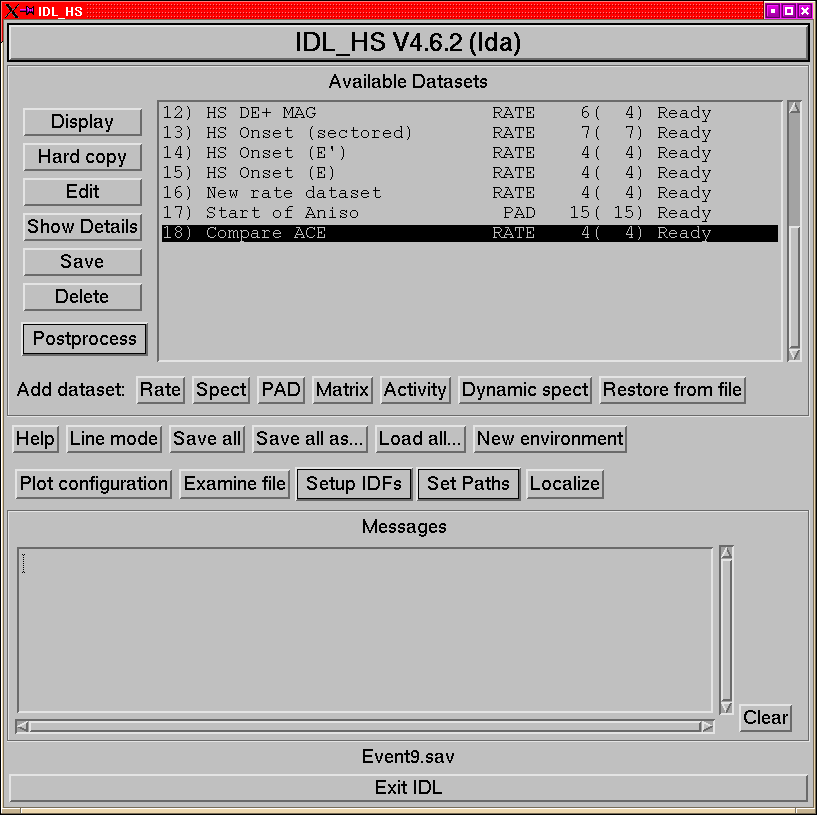
datasets is shown in Figure 1.
Figure 1:
The main IDL_HS menu, with several datasets defined.
|
|
At the top of the menu is a listbox which has a list of all the currently
defined datasets and their status. The items in each line are:
- An index number
- The name of the dataset.
- Its type, (one of RATE, PAD, SPECT, MATRIX or XFLARE).
- The number of streams defined in that dataset. The number that are
flagged to be displayed follows in parentheses.
- Its status, this is one of:
- Incomplete:
- Either it doesn't have a time range, or it has no streams.
- Not Ready:
- The dataset is fully specified, but the data have not
been read.
- Raw:
- The data have been read, but not processed.
- Ready:
- The data have been read and processed.
Immediately below this are three groups of buttons
- to perform basic operations on the current dataset.
- to define new datasets.
- to make global settings.
The text widget below this is the window in which messages from IDL_HS
are displayed.
Finally right at the bottom is a button to exit from IDL.
An important concept in the IDL_HS version 4 is that of the current
dataset; all dataset operations are carried out on the current dataset.
The various buttons in the second group allow you to quickly perform
various common operations on the current dataset:
- Display
- Plot the current dataset to the screen. If necessary the
dataset will be read and data processing carried out.
- Hard Copy
- Display the dataset to the PostScript device and then
revert to X-windows display.
- Edit
- Open the dataset menu. This can also be opened by double-clicking
on the dataset's line in the dataset list.
- Show Details
- Display a summary of the dataset and its streams.
- Save
- Save the dataset to an IDL save file. The dataset can then be
restored using the ``Restore DS from file'' button. (This is the
easiest way to make a copy of a dataset). Please note that the
underlying structure definitions may change between versions, normally
changes between micro-versions (e.g. 4.1.0 to 4.1.1) should be OK.
- Delete
- Self explanatory.
- Postprocess
- This is a pulldown menu for such operations as spectral
exponent calculations. The list is dependent on the type of dataset
currently selected. It always contains at least an option to mark
positions, and to add ``markers'' to the plot.
From the main menu, click on the appropriate new-dataset button. If
an existing dataset in the dataset list is selected, then properties
such as time range, HISCALE & EPAM archive types etc. will be inherited
from that dataset (basically those things that were common to all
programs in earlier versions).
When you do this, you will get the dataset menu which allows you to
set the various properties of the dataset. Most of these should be
familiar to those users who have used earlier versions of IDL_HS.
The details of the specific dataset classes are described later in
this document.
It is also possible to restore a previously-saved dataset (in IDL
SAVE format). To do this, click on the "Restore dataset"
button, this will produce a menu with which you can select the dataset
to restore. A restored dataset also has all its streams and status
flags preserved. Note that datasets saved with one version of IDL_HS
may not be fully valid with a different version because of changes
in the underlying data structures; this can usually be resolved by
re-reading the data. As of 4.3.0, the IDL_HS version number is stored
along with the dataset and a warning is generated if the version number
is absent or lower than the version you are using. Saved datasets
should be portable across operating systems and hardware.
These items which form the third group of buttons in the menu allow
settings that affect all datasets to be adjusted.
- Help
- Access the help system. If it has been installed, then the local
copy is used, otherwise the version on the web is accessed.
- Line mode
- Destroy the menus but remain in IDL. Since all version 4
menus that do not have to be modal are non-blocking this is only a
convenience to unclutter your screen.
- Save all
- Saves the container object and all its associated objects.
This can then be restored by starting idl_hs with the command
-
- idl_hs -R filename
you can then pick up where you left off (even if you are on a different
platform). Please note that the underlying structure definitions
may change between versions, normally changes between micro-versions
(e.g. 4.1.0 to 4.1.1) should be OK.
As of version 4.4, when an environment is saved, the filename is associated
with the environment. If the environment has a filename, then this
option uses that name without further prompting.
- Save all as...
- Save the container object and all its associated
objects to a specified file.
- Load All...
- Restore an environment from a save file and delete the
current one. If the current environment has been changed since it
was last saved, then you will be asked whether you want to go ahead.
- New environment
- Create a new empty environment
- Plot configuration
- Set up the plot device. See p.
![[*]](pics/crossref.png) for detailed description.
for detailed description.
- Examine file:
- A browser for HSIO files. See p.
for details.
- Setup IDFs
- A pulldown menu to allow you to set up the instrument
definitions for all the various type of data that the program knows
about. Each known data type where the IDF can be changed has its own
menu called from this menu, those allow the version of the instrument
information to be changed and the search path to be modified.
- Set paths
- A pulldown menu to allow you to set the data search paths
for the various classes of data.
- Localize
- Change the paths, plotting options and UDS instrument lists
to the local defaults. This is useful if you have imported a saved
environment from somewhere else where data paths are different.
The ``Clear'' button below the message window, clears
the contents of the message window. The "Exit IDL"
button at the very bottom of the menu quits from IDL. The label above
the Exit button shows the filename of the current environment and
also whether it has been changed since the last save.
Rate datasets are used to display time-series data (historically these
were just counting rates).
Figure 2:
The rates dataset menu.
|
|
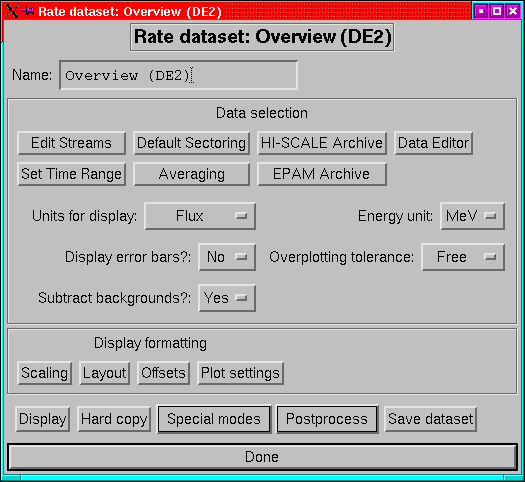
The Rate dataset menu (Figure 2) offers the following
settings.
- Name:
- A dataset can have a name which identifies it. This can be
any string, and is the name which will appear on the top-level menu
and also in the plot title bar.
- Edit Streams:
- This replaces the old channel-selection menu. This
is also where to go if you want to re-arrange the order of the streams
or set stream-specific options.
- Set Time Range:
- Set the time limits for the dataset. (p ).
- HISCALE Archive and EPAM Archive:
- Set the archive types
(e.g. ULA, CUAF etc) for HISCALE and EPAM rates data. (p. ).
- Averaging:
- Set the averaging interval for the data. (p. ).
- Default sectoring:
- Choose which sector or sectors to display. (p. 12.3).
- Data Editor:
- Invoke the data editor on the current dataset, see
page .
- Units for display:
- Data can be plotted as flux or as count rates.
- Display error bars
- Decide whether to put error bars on the plot.
(May not be implemented for all streams).
- Subtract background
- Decide whether to subtract background levels
from the streams before plotting.
- Energy unit
- Decide whether to use keV or MeV as the energy unit.
- Overplotting Tolerance:
- Set the level to which the dataset should
tolerate mismatched streams being overplotted. The options are:
- Strict:
- The streams must have an exact match of units (e.g. a Wart
flux and a LEMS30 flux will not overplot).
- Relaxed:
- Ignore minor differences like whether energies are MeV or
MeV/nuc. If there is a mismatch then the first found will be used
as the label on the axis.
- Free:
- Anything goes! if you really want to overlay magnetic field
and flux go ahead and do it (but don't blame me if you get confused).
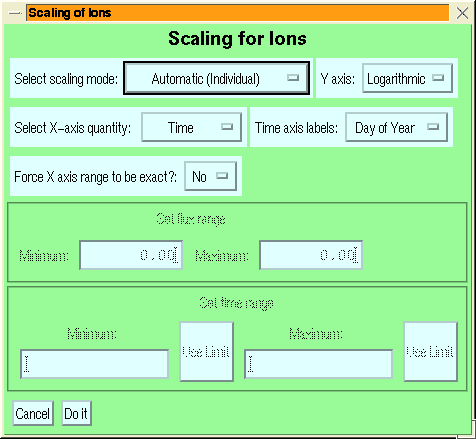
- Scaling
- Bring up a menu to select various scaling options. This menu
also includes the options for choosing log or linear plots and for
selecting plotting against ephemeris properties.
Figure 3:
The menu to set the scaling of a rates dataset.
|
|
If a particular option is not applicable to a dataset, then the droplist
for that is not displayed. The greyed-out part of Figure 3
is enabled when manual scaling is selected.
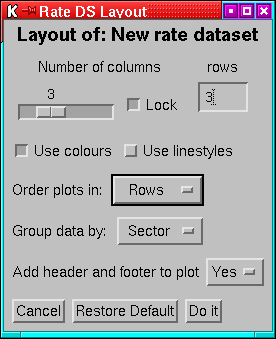
- Layout
- Bring up a menu (Figure 4) to choose how
to lay the plot out on the page.
Figure 4:
The menu for setting the layout of a rates dataset.
|
|
Most of the items in the menu should be obvious, however, note that:
- The number of rows cannot be adjusted, there are always enough rows
to show all panels in the specified number of columns.
- The Lock option locks the number of columns so that if further streams
are added or removed from the display then they are accomodated by
changing the number of rows only, it does not stop you changing the
number of columns.
- The grouping option only applies when there are multiple streams with
multiple sectors, then if the setting is ``group by sector'' then
all the sectors of a stream are plotted on the same axes, ``group
by channel'' make one plot panel for each sector. The default is
group-by-sector (this is a change from 3.x where group-by-channel
was the default), if the streams have different numbers of available
sectors then group-by-channel is not available (however if different
sectors are selected from streams with the same numbers of sectors
then group-by-channel is possible, although the offsets (qv)
may get confused).
- Offsets
- Set the offset factors between traces on a panel. These can
be set, either as individual offsets for the traces or as a ratio
between successive traces. Note that to clear the offsets, the best
thing to do is to set the ratio to 1.0 (you need to enter a carriage
return or to type something in the ratio box to make the system recognise
that you've set a ratio).
- Plot settings
- Set a plot control specific to the dataset. By default
a dataset gets its plot control information from the environment,
but it is possible for a dataset to have its own set of plot controls.
This menu allows you to control this option.
- Display
- Make a plot of the dataset. If necessary data will be read
and processed.
- Hard copy
- Make a hard copy of the dataset. The plot device will
then be switched back to X.
- Special Modes:
- This is a pull down menu with a number of less-used
reading and display options, such as reading the data without displaying
it.
- Postprocessing:
- This pull down menu offers the postprocessing options,
e.g. a tool to measure positions on the plot and routines for calculating
ratios and spectral indices.
- Save
- Save the dataset to an IDL save file. This can then be restored
using the top-level menu's restore option. Please note that
the underlying structure definitions may change between versions so
that old saves may not be properly restorable.
Currently there are six main classes of stream defined,
- Lan rates streams:
- These are the HISCALE or EPAM rate channel plots.
- Track streams:
- The track rates data generated by PHAGEN, from HISCALE
or EPAM data.
- MFSA streams:
- The 32-channel MFSA data from HISCALE or EPAM.
- ULEIS streams:
- The matrix rates from ULEIS.
- UDS streams:
- Streams based on data from UDS. See Appendix A
for details of how to add a new UDS stream class.
- Mag streams:
- Magnetic field data that have been merged into the
HISCALE or EPAM rates files.
Unlike earlier versions of IDL_HS these can be freely mixed in a
single plot.
Figure 5:
The streams editing menu for a rates dataset.
|
|
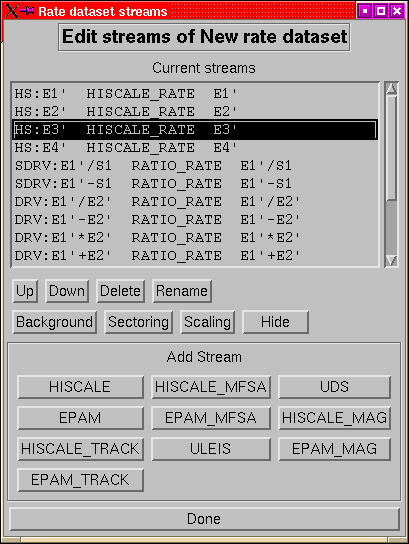
The list box at the top of the streams menu (Figure 5)
Allows you to select a stream on which to work. The top row of buttons
under the list all operate on the currently selected stream:
- up down:
- These allow you to move a stream one place up or one place
down the list. If the stream is the first or last, then the inapplicable
button is disabled.
- delete:
- Delete the currently selected stream.
- rename:
- Change the name of the current stream. Stream names are used
to label traces in plots, however unlike dataset names they are not
that vital.
- background:
- Change the background count rates for this stream.
- sectoring:
- Select the sectors to display for this stream, the default
is to use the dataset settings but this option can be used to show
a different selection of sectors for a particular stream.
- scaling:
- Set the scaling for the stream. This overrides the dataset
settings. It is particularly useful for cases where one stream needs
to be forced to a particular range. This setting is silently ignored
when group-by-channel is in force.
- hide/unhide:
- Hide (or unhide) the selected stream. Hidden streams
are processed just like other streams but they are not displayed.
There must always be at least one unhidden stream in a dataset. Hidden
streams are listed in parentheses in the stream list.
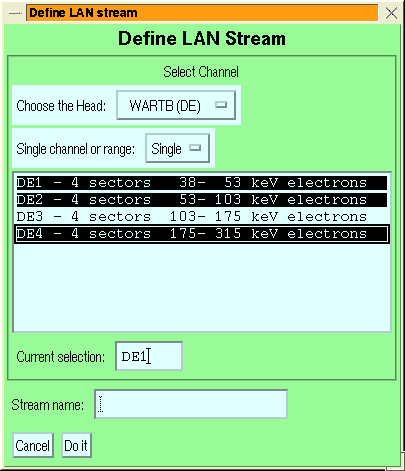
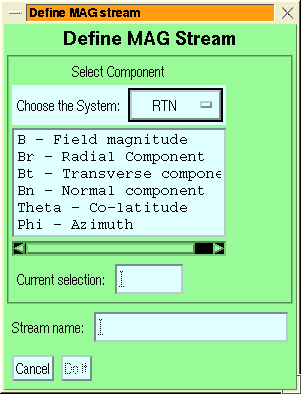
The remaining buttons allow you to add new streams. These will produce
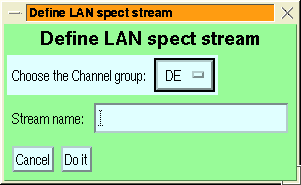
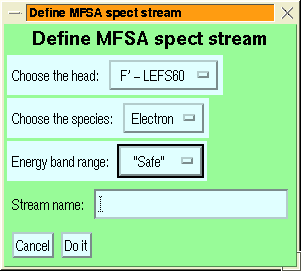
the new-stream menus for the type of stream to be added (Figure 6).
Figure 6:
The stream-addition menus for LAN rates
data (left) and MAG data (right).
|
|
The general features of the various stream definition menus are similar:
- the channel group or species is selected via the top droplist
- MFSA streams have an additional species selection to choose which
species energy ranges to use in computing fluxes, so that you can
look at electrons or ions with the foil channels (or any other species
whose MFSA response has been characterised, but use others with caution).
- ULEIS streams have an extra selection of ``Small'' or ``Large''
energy systems.
- If desired, a range of channels can be added together by setting the
second droplist to ``Range''
- The channel is selected by clicking on the desired channel in the
list box.
When range selection is enabled, then after clicking on the first
channel, those channels which cannot be combined with it are blanked
out.
Making a new selection after you have chosen a channel, replaces the
previous choice.
The lists allow multiple selections using the IDL/motif multiple selection
model, i.e.:
- Clicking on an item makes it the sole selection
- Shift-clicking on the item selects from the previous selection to
this one.
- Control-clicking on an item toggles its selection state.
Multiple selection allows you to select several streams at one time
it is not used for selecting ranges.
- If you want to give the stream a name it may be entered in the text
box labelled ``Stream Name''.
- The ``Do it'' button confirms the selection and creates the stream,
``Cancel'' cancels the stream addition.
After a dataset has been acquired, processed and displayed, there
are a number of postprocessing options available.
This option calculates a spectral exponent between a pair of existing
rate streams.
Index streams can be added to any rate stream which has been displayed
(or at least acquired and processed). They are added via the ``Form
indices'' options in the postprocessing menu (either on the dataset
menu or the main menu); this will generate a menu to select the streams
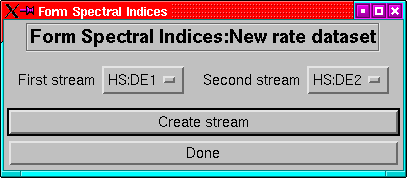
to use (Figure 7).
Figure 7:
The menu for adding spectral indices to a rates
dataset.
|
|
To set up an index calculation, choose the first stream of the pair
in which you are interested with the left-had droplist (any streams
which cannot be combined with others will not be listed), then choose
the second stream with the right-hand droplist (only those streams
compatible with the first will be shown), the actual order of the
streams doesn't matter. To do the calculation click on ``Create
Stream''. If you made the wrong selections, then just make a new
pair of selections.
When you've done with generating indices, then click on ``Done''
and redisplay the dataset. If you don't want to see the original streams,
then use the hide option in the edit streams menu to hide the streams
you don't want to display.
The computation of spectral indices is an iterative process because
all the channels have a finite bandwidth so that the ``effective
energy'' of the channel is dependent on the spectral index. The procedure
used is:
- Assume the channel energies are the geometric mean of their limits
(i.e. spectral index = 2).
- Calculate the spectral index.
- Correct the channel energies to the calculated index.
- repeat 2 and 3 until either the indices aren't changing or the maximum
number of iterations has been reached.
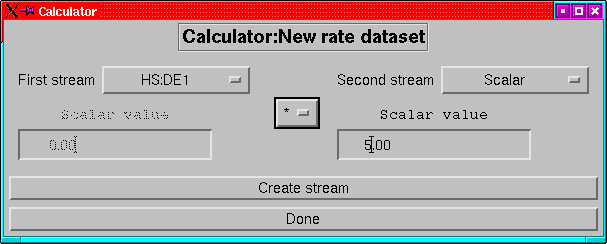
The stream calculator allows simple arithmetic operations between
pairs of streams or between a stream and a scalar.
Figure 8:
The stream calculator menu.
|
|
Unlike its predecessor (including the ratios methods of versions
prior to 4.4) the calculator can do more than just compute ratios
(have you ever tried to generate  with ratios alone?
It can be done but it is messy). The supported operations are: ratio,
difference, product, sum and raising to a power (for streamscalar
only). For all operations, one stream can be replaced by a scalar.
with ratios alone?
It can be done but it is messy). The supported operations are: ratio,
difference, product, sum and raising to a power (for streamscalar
only). For all operations, one stream can be replaced by a scalar.
First select the stream to precede the operator using the left hand
droplist (or select ``Scalar'' and enter a value in the left-hand
entry field). Then select the stream to follow the operator (or ``Scalar''
and enter a value in the right hand entry field), only those streams
which can be combined with the first are displayed. The operator can
be set at any time.
Once a calculation has been selected, click on the ``Create stream''
button to create the new stream, note that if the second stream is
a scalar and zero, then the create button is desensitized for the
division operator.
When all the new streams have been defined and created, then click
on ``Done''.
Sector ratios are not dissimilar from the calculator, but instead
of combining 2 streams, the operation is within a single stream and
all sectors are divided by the selected sector, or one sector is subtracted
from all sectors.
The other postprocessing options are:
- Write to file:
- Write the dataset to an ASCII file. The format is
somewhat changed from the version 3 ASCII save files.:
- Line 1:
- Number of streams and number of times.
- Line 2:
- Number of sectors in each stream.
- Line 3:
- A comma-separated list of the channels.
- Remaining lines:
- The start and end JD of each record followed by
the values
If not all streams share a common time-axis then separate files are
generated for each group of streams.
- Locate
- Allows you to use the cursor to locate positions on the plot.
- Dump PNG
- Allows you to dump the current graphics display to a PNG
file.
- Markers
- Allows you to control the addition of markers to the plot.
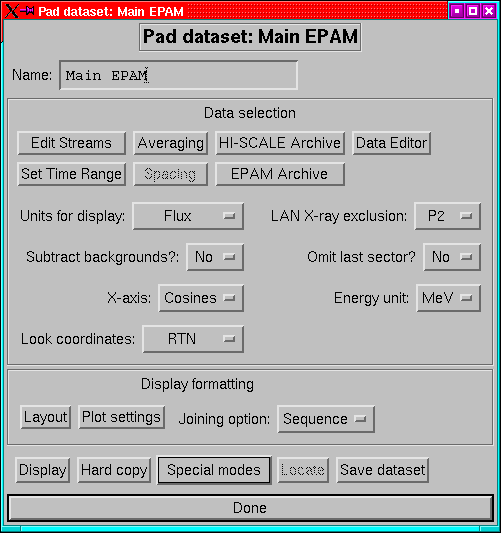
The PAD dataset generates plots of fluxes against pitch angle.
Figure 9:
The main menu for PAD datasets
|
|
Many of the settings available on the PAD dataset menu (Figure 9)
are the same as those in the rates dataset menu.
- Name:
- A dataset can have a name which identifies it. This can be
any string, and is the name which will appear on the top-level menu
and also in the plot title bar.
- Edit Streams:
- This replaces the old channel selection menu. This
is also where to go if you want to re-arrange the order of the streams
or set specific backgrounds.
- Set Time Range:
- Set the time limits for the dataset. (p ).
- HISCALE Archive and EPAM Archive:
- Set the archive types
(e.g. ULA, CUAF etc) for HISCALE and EPAM rates data. (p. ).
- Averaging:
- Set the averaging interval for the data. (p. )
- Spacing:
- Set the spacing of the selected times. Thus a spacing of
1 plots every spin, while 5 plots every fifth spin. Averaging and
spacing are mutually exclusive; to get say 5 minute averages and only
make one plot every 15 minutes, set the spacing to 1 and use an averaging
interval of 5 minutes with a spacing of 15 minutes.
- Data Editor:
- Invoke the data editor on the current dataset, see
page .
- Units for display:
- Data can be plotted as flux or as count rates.
- LOOK direction coordinates:
- Select whether to plot look-direction
plots in RTN or spacecraft coordinates.
- Subtract background
- Decide whether to subtract background levels
from the streams before plotting.
- X-ray exclusion:
- Set the energy level below which the Sun-sectors
are excluded from LEMS30 plots.
- X-axis:
- Select whether to plot against cos(pitch-angle) or against
pitch-angle.
- Energy unit
- Decide whether to use keV or MeV as the energy unit.
- Layout
- Bring up a menu to choose how to lay the plot out on the page.
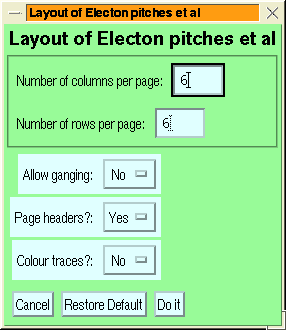
Figure 10:
The menu for setting the layout of a PAD
dataset.
|
|
The ganging option allows you to control what happens when there are
more rows available in the layout than panels. If ganging is enabled,
then (for example) if there are only 2 panels and 6 rows then there
will be 3 ranks of plots running across the page or screen.
- Plot settings
- Set a plot control specific to the dataset. By default
a dataset gets its plot control information from the environment,
but it is possible for a dataset to have its own set of plot controls.
This menu allows you to control this option.
- Joining:
- Select how to join up the sectors. The possibilities are:
- None: don't join them up at all.
- Sequence: Join the sectors 1-8 and then join 8 to 1 to form a loop.
- Sorted: Sort the sectors into pitch-angle order and then join them.
- Display
- Make a plot of the dataset. If necessary data will be read
and processed.
- Hard copy
- Make a hard copy of the dataset. The plot device will
then be switched back to X.
- Special Modes:
- This is a pull down menu with a number of less-used
reading and display options, such as reading the data without displaying
it.
- Locate:
- Allows you to locate features on the plots interactively.
- Dump PNG
- Allows you to dump the current graphics display to a PNG
file.
- Save
- Save the dataset to an IDL save file. This can then be restored
using the top-level menu's restore option. Please note that
the underlying structure definitions may change between versions so
that old saves may not be properly restorable.
The selection and organization of streams is rather more complex than
is the case for rates datasets, as the streams are organized into
panels.
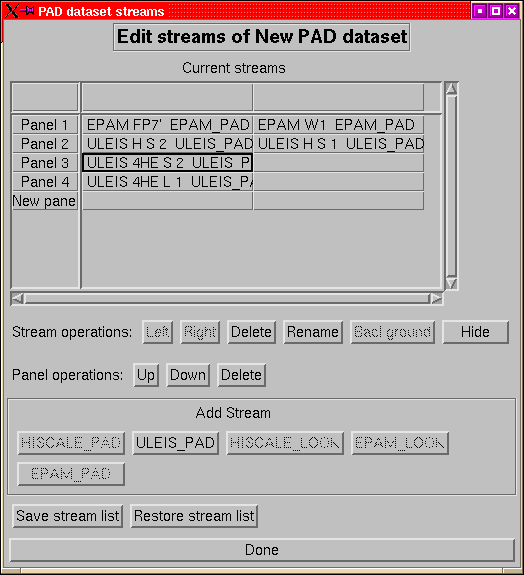
Figure 11:
The menu for adding streams to a PAD dataset.
|
|
The table widget displays the current streams and allows you to select
streams and panels for operations. When the menu is opened for the
first time on a new dataset, it contains a single cell, as streams
are added it is expanded.
To add a new stream to the dataset, you must first select the panel
to which it is to be added (the last row of the table is always headed
``New panel'' and will create a new panel when a stream is added
to it) by clicking in a cell of the panel. If you select an existing
panel, then only one of the add stream buttons will be available--the
one for the class of stream already represented in the panel. There
are two main type of stream in a PAD dataset:
- PAD streams:
- The normal type of stream which shows the flux of the
various sectors of a channel as a function of pitch angle. In a panel
of PAD streams, the first stream sectors are indicated by the numbers
1-8, the second by the letters A-H, the third by s-z, the fourth by
j-q and the fifth by various punctuation symbols (in the unlikely
event of having more than 5 streams in a channel, the pattern is repeated).
PAD panels are plotted as normalized values, with the peak flux indicated
on the plot.
Figure 12:
Menus for selecting streams for a PAD
dataset, left - PAD streams, right - Look-direction streams.
[PAD stream selector]
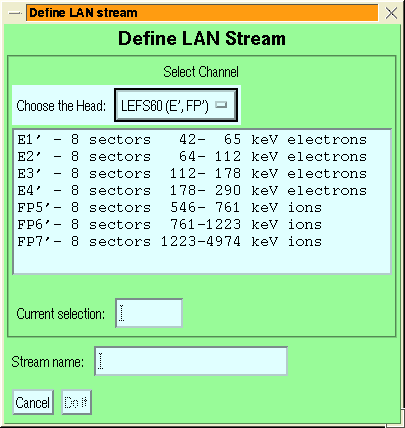 [Look direction selector]
|
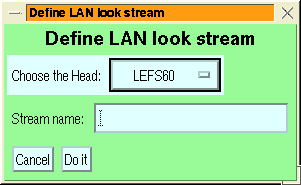
- LOOK streams:
- A look-direction plot shows a sky map with the directions
of the various sectors and the direction to the Sun and of the magnetic
field indicated (by a circle and an asterisk respectively).
The menus for adding PAD streams are very similar to the corresponding
rates stream menus (Figure 6) except that
there is no range option and no multiple selection. The LOOK stream
menu just offers a selection of heads.
Although it is in principle possible to mix HISCALE, EPAM and ULEIS
data in a single dataset (although not within a panel) this can only
be done if averaging is requested as the layout engine for PAD datasets
requires that all streams share a common time axis.
In addition to adding channels singly, it is also possible to save
a list of channels and the use the file to add a group of channels
all at once. These are done with the save and restore stream list
buttons. If there are already streams present when a restore is done,
then the new channels are added to the existing list.
The format of the stream list is one line per panel, with a stream
type descriptor first followed by a list of channels, e.g.:
-
- EPAM_PAD E1' E1 DE1
EPAM_PAD E4' DE4
EPAM_PAD P2' P2
EPAM_PAD P4' P4
EPAM_PAD P6' P6 FP6' FP5
EPAM_PAD P8' P8
EPAM_LOOK LEFS60 LEMS120 LEFS150 LEMS30
In addition to the stream adding menus, there are several other operations
that can be performed:
These are available if a single cell is selected:
- Left Right:
- Move the stream earlier or later in the panel. This
will affect the choice of symbol to indicate its sectors and (if enabled)
the colour in which it is plotted.
- Delete:
- Remove the stream
- Rename:
- Change the descriptive name of the stream.
- Background:
- Change the background rates of the stream.
- Hide/Unhide:
- Hide (or unhide) the selected stream. Hidden streams
are processed just like other streams but they are not displayed.
There must always be at least one unhidden stream in a dataset. Hidden
streams are listed in parentheses in the stream list.
These are available if the selection is confined to a single column
(panel).
- Up Down:
- Move the panel earlier or later in the list of panels.
- Delete:
- Delete the entire panel.
At present we do not have the ability to make PAD plots of MFSA or
Track data as these do not have magnetic field merged in and the time
resolution is not good enough to make meaningful pad plots.
ULEIS look plots are not supported as: firstly; there is no easy way
to get the coordinate transforms and secondly; they can easily be
deduced from the EPAM LEFS60 look plots.
To make ULEIS PAD plots, you must have the ACE field data in ``UMAG''
format (from DKB200:[EPAM.DATA] on epam.ftecs.com)
but renamed to amagyyddd.dat (to
avoid confusion with the Ulysses field data). These directory with
these files needs to be in the UDS search path4.
At present the only postprocessing options for PAD datasets are the
locator tool, the screen dump, and the marker tool.
Spect datasets display particle energy spectra.
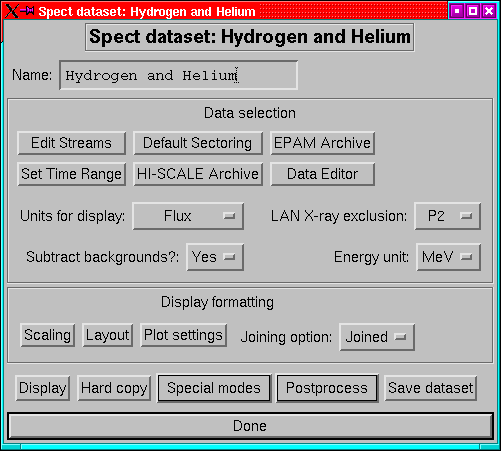
Figure 13:
The main menu for a spect dataset.
|
|
As is clear from Figure 13, the spect dataset menu
is a bit simpler than that for rates or PAD datasets.
- Name:
- A dataset can have a name which identifies it. This can be
any string, and is the name which will appear on the top-level menu
and also in the plot title bar.
- Edit Streams:
- This replaces the old channel selection menu. This
is also where to go if you want to re-arrange the order of the streams
or set specific backgrounds.
- Set Time Range:
- Set the time limits for the dataset. (p ).
- HISCALE Archive and EPAM Archive:
- Set the archive types
(e.g. ULA, CUAF etc) for HISCALE and EPAM rates data. (p )
- Default sectoring:
- Set the default sector selection for the dataset.
(p. ).
- Data Editor:
- Invoke the data editor on the current dataset, see
page .
- Units for display:
- Data can be plotted as flux or as count rates.
- Subtract background
- Decide whether to subtract background levels
from the streams before plotting.
- X-ray exclusion:
- Set the energy level below which the Sun-sectors
are excluded from LEMS30 plots. For MFSA plots the M channels have
exclusion up to the same energies.
- Energy unit
- Decide whether to use keV or MeV as the energy unit.
- Scaling:
- Set whether to scale plots manually or automatically.
- Layout
- Bring up a menu to choose how to lay the plots out on the
page.
- Plot settings
- Set a plot control specific to the dataset. By default
a dataset gets its plot control information from the environment,
but it is possible for a dataset to have its own set of plot controls.
This menu allows you to control this option.
- Joining:
- Select how to join up the channels. The possibilities are:
- Limits:
- Draw horizontal error bars to show the width of the channels
in energy
- Join:
- Draw a polyline between the energy centres of the channels
- Both:
- Do both of the above.
- Display
- Make a plot of the dataset. If necessary data will be read
and processed.
- Hard copy
- Make a hard copy of the dataset. The plot device will
then be switched back to X.
- Special Modes:
- This is a pull down menu with a number of less-used
reading and display options, such as reading the data without displaying
it.
- Postprocessing:
- Allows you to run the locator tool, the screen dumper
or save the data to an ASCII file.
- Save
- Save the dataset to an IDL save file. This can then be restored
using the top-level menu's restore option. Please note that
the underlying structure definitions may change between versions so
that old saves may not be properly restorable.
Figure 14:
The stream addition/modification menu for
spect datasets: upper - LAN data, lower - MFSA data.
|
|
Like PAD datasets, spect datasets have their streams organized into
panels, thus the stream menu is rather similar to that of a PAD dataset.
The table widget displays the current streams and allows you to select
streams and panels for operations. When the menu is opened for the
first time on a new dataset, it contains a single cell, as streams
are added it is expanded.
To add a new stream to the dataset, you must first select the panel
to which it is to be added (the last row of the table is always headed
``New panel'' and will create a new panel when a stream is added
to it) by clicking in a cell of the panel. Unlike PAD datasets, however,
stream classes can be freely mixed. The types of stream are:
- spect:
- (these are class lan_spect) spectra derived from the LAN
rates channels (including the various WART channels). Unlike version
3 and before, the FP and E channels of the LEFS channels are treated
separately.
- comp:
- (class comp_spect) spectra of specific species derived from
TRK data.
- MFSA:
- 32 channel spectra from the MFSA records.
- ULEIS:
- Spectra generated from the ULEIS matrix rates data.
In each case the channel selection menu is a simple droplist selector,
and a name box. For ULEIS streams you also need to select the energy
system, and for MFSA streams the species to assume.
These operations are available when a single stream has been selected
in the table:
- Left Right:
- Move the stream earlier or later in the panel (effectively
this only changes the colour used for it and the order of items in
the title and the key).
- Up Down:
- Move the stream to an earlier or later panel. (At present
it is not possible to move a stream into the new panel). When a stream
is moved to a new panel it is added as the last stream in the panel.
- Sectors:
- Set the sectors to be displayed for the stream. The default
is taken from the dataset setting.
- Delete:
- Remove the stream.
- Rename:
- Change the name of the stream
- Background:
- Adjust the background levels of the stream.
- hide/unhide:
- Hide (or unhide) the selected stream. Hidden streams
are processed just like other streams but they are not displayed.
There must always be at least one unhidden stream in a dataset. Hidden
streams are listed in parentheses in the stream list.
These are available if the selection is confined to a single column
(panel).
- Up Down:
- Move the panel earlier or later in the list of panels.
- Delete:
- Delete the entire panel.
Spectral datasets support the computation of sector ratios and differences,
and arithmetic operations with one stream and a scalar. Since no 2
streams have the same energy bounds, it is not meaningful to allow
operations between streams.
There are also options to write the dataset to an ascii file, and
the locator, screen dump and marker tools are available.
In spect datasets, where there may be multiple multi-sectored streams,
a decision has to be made as to how to allocate colours. The scheme
used is this.
- If all the panels have just one stream then colours are allocated
by sector. With black for sector averages, red for sector 1 etc. If
plot headers are in use a key is placed at the bottom of the plot.
- If some panels have multiple streams, then the colours are allocated
by stream and all the sectors are done in one colour. The key is then
placed on the individual panels.
A dynamic spectrum dataset is a sort of hybrid of a rate dataset and
a spect dataset.
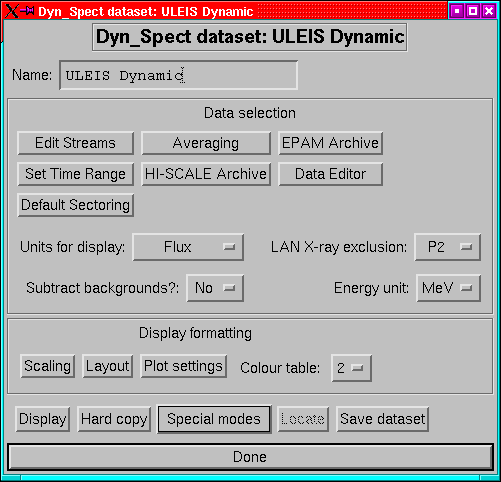
Figure 15:
The main menu for a dynamic spectrum dataset.
|
|
The main menu is shown in Fig 15, as will be apparent
it's pretty similar to that for spectrum datasets.
- Name:
- A dataset can have a name which identifies it. This can be
any string, and is the name which will appear on the top-level menu
and also in the plot title bar.
- Edit Streams:
- This replaces the old channel selection menu. This
is also where to go if you want to re-arrange the order of the streams
or set specific backgrounds.
- Set Time Range:
- Set the time limits for the dataset. (p ).
- HISCALE Archive and EPAM Archive:
- Set the archive types
(e.g. ULA, CUAF etc) for HISCALE and EPAM rates data. (p )
- Default sectoring:
- Set the default sector selection for the dataset.
(p. ).
- Data Editor:
- Invoke the data editor on the current dataset, see
page .
- Units for display:
- Data can be plotted as flux or as count rates.
- Subtract background
- Decide whether to subtract background levels
from the streams before plotting.
- X-ray exclusion:
- Set the energy level below which the Sun-sectors
are excluded from LEMS30 plots. For MFSA plots the M channels have
exclusion up to the same energies.
- Energy unit
- Decide whether to use keV or MeV as the energy unit.
- Scaling:
- Set whether to scale plots manually or automatically. Also
selects whether log or linear scales are to be used, and whether to
smooth the plot in energy and/or in time.
- Layout
- Bring up a menu to choose how to lay the plots out on the
page.
- Colour table:
- Select a colour table for the display. 0 is the greyscale
table. For PostScript output, if colour is not enabled, then this
is ignored and greyscale is used.
- Plot settings
- Set a plot control specific to the dataset. By default
a dataset gets its plot control information from the environment,
but it is possible for a dataset to have its own set of plot controls.
This menu allows you to control this option.
- Display
- Make a plot of the dataset. If necessary data will be read
and processed.
- Hard copy
- Make a hard copy of the dataset. The plot device will
then be switched back to X.
- Special modes:
- This is a pull down menu with a number of less-used
reading and display options, such as reading the data without displaying
it.
- Locate:
- Interactively mark positions on the plot.
- Dump PNG
- Allows you to dump the current graphics display to a PNG
file.
- Save
- Save the dataset to an IDL save file. This can then be restored
using the top-level menu's restore option. Please note that
the underlying structure definitions may change between versions so
that old saves may not be properly restorable.
The organization of the streams of a dynamic spectrum dataset is linear
like that of a rates dataset, but the available channels are the same
as those for a spect dataset. It is however doubtful whether the plain
WART channels (W1+2 etc.) are of much use.
Dynamic spectrum datasets support the locator, screen dump and marker
tools.
A matrix dataset is for displaying HISCALE or EPAM PHA matrix data.
The nature of the data means that its behaviour is a little different
from other dataset classes; in particular, a matrix dataset can only
have a single stream.
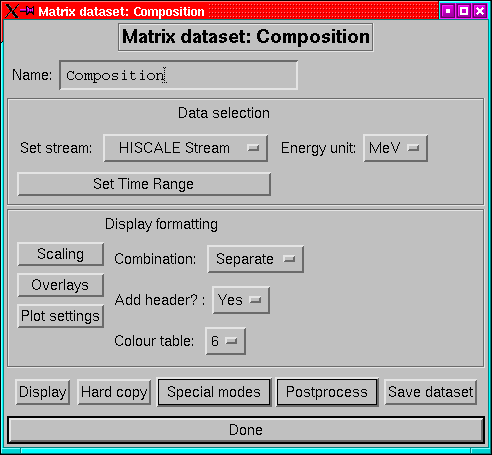
Figure 16:
The menu for defining a matrix dataset.
|
|
The main components are:
- Name:
- A mnemonic name for the dataset.
- Set stream:
- Unlike other dataset classes, this doesn't bring up
a new menu to select streams as there are only 2 types and the dataset
is restricted to a single stream. Therefore this is a droplist item.
- Energy Unit:
- The energy unit for the axes of the matrix.
- Set Time Range:
- The familiar setting for the time limits. (p ).
- Scaling:
- Set scaling options, including selecting a subregion of
the matrix.
- Add header:
- Do you want to put a header on the plot?
- Overlays:
- (Well mostly underlays actually) Select whether to indicate
the locations of the WART channels, the tracks, centrelines etc.
- Colour Table:
- Which colour table to use? 0 is greyscale table.
- Combination:
- There are 3 possibilities:
- Separate
- means show the individual matrices and then ask the user
before advancing.
- Sum
- means add them all up (except for the 4-fold sum matrices). This
is suitable for matrices with total counts in them (the usual case).
- Average
- means average the matrices together (weighting the regions
by their accumulation times). Suitable for the rarer count rate matrices.
- Plot settings
- Set a plot control specific to the dataset. By default
a dataset gets its plot control information from the environment,
but it is possible for a dataset to have its own set of plot controls.
This menu allows you to control this option.
- Display
- Make a plot of the dataset. If necessary data will be read
and processed.
- Hard copy
- Make a hard copy of the dataset. The plot device will
then be switched back to X.
- Special Modes:
- This is a pull down menu with a number of less-used
reading and display options, such as reading the data without displaying
it.
- Postprocessing:
- Allows you to run one of the locator tools or operate
on histograms, or to dump the screen.
- Save
- Save the dataset to an IDL save file. This can then be restored
using the top-level menu's restore option. Please note that
the underlying structure definitions may change between versions so
that old saves may not be properly restorable.
Matrix datasets support the regular locator tool and also a detailed
locate which returns the species, energy and counts for the pixel
selected.
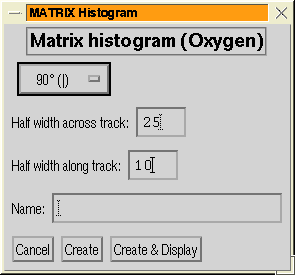
It is also possible to compute histograms either along or across tracks.
Histograms are attached to the dataset in a similar way to streams,
however they are not really streams (despite inheriting the generic_stream
class).
New histograms are generated via the ``Histogram'' option of the
Postprocessing menu. This first asks you to select a centre point
for the histogram, when you have done this, you will then see the
histogram options menu (Figure: 17 (left)).
Figure 17:
The histogram menus for a matrix dataset. Left:
the menu for defining a histogram; Right: the menu for displaying
existing histograms.
|
|
The histogram can either be made cutting across the track, or it
can be made along the track. For histograms across the track the length
and width can be specified.
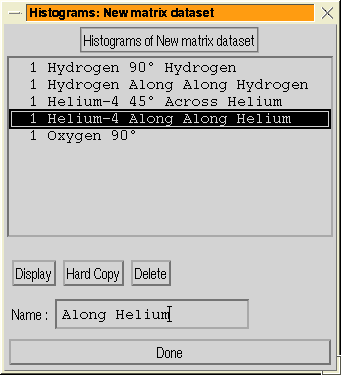
To (re-)display an existing histogram, you should select the ``Edit
histograms'' option with allows you to display histograms, make hard
copy or delete them via the histogram editing menu (Figure: 17 (right)).
In addition, matrix datasets also support the marker tool.
Activity plots are plots of X-ray flares as a function of time and
longitude. The version in idl_hs version 4 is considerably more
sophisticated than that in version 3, in that it now supports a choice
of Bartels, Carrington and geocentric rotation systems and allows
the generation of histograms of flare counts.
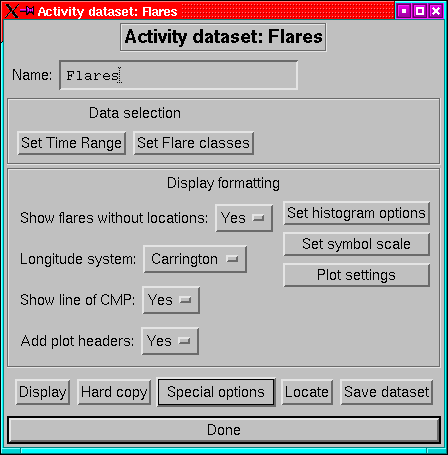
Figure 18:
The main menu for creating activity plots.
|
|
The main menu (Figure: 18) follows the pattern of
other dataset classes with:
- Name:
- Set a mnemonic name for the dataset, which will appear at the
top of the plot if headers are selected.
- Set Time Range:
- Set the time limits for the dataset. (p )
- Set Flare Class:
- Brings up a menu to allow you to set the lowest
intensity flare to be shown. There is also an option to set the flare
class which would have a zero-sized symbol if plotted.
- Show flares without locations:
- Select whether flares with no optical
counterpart should be plotted in a column to the left of the main
plot.
- Add plot headers:
- Select whether to add headers to the plot.
- Rotation system:
- Select between Bartels (27.0 day) and Carrington
(27.2753 day) rotation systems, or the raw positions relative to CMP.
- Set histogram options:
- Brings up a menu to select the binsize for
two histograms.
- A longitude histogram, showing the number of flares in each longitude
bin. This will be plotted underneath the main plot, sharing a common
longitude axis.
- A time histogram, showing the evolution of the flare rate through
the plot. This is plotted to the right of the main plot, and shares
a time axis.
- Show line of CMP:
- Draw a dashed line showing the longitude of
central meridian on the plot. This is only useful on plots with relatively
few rotations.
- Set symbol scale:
- Set the scaling of the symbols relative to the
default symbol size. Just try values till your plot looks right.
- Plot settings
- Set a plot control specific to the dataset. By default
a dataset gets its plot control information from the environment,
but it is possible for a dataset to have its own set of plot controls.
This menu allows you to control this option.
- Display Data:
- Do just that, generate the plot; reading and processing
the data as needed.
- Hard Copy:
- Make a PostScript version of the plot.
- Special modes:
- A pulldown menu to select other less-used display
options and also the post-processing menu.
- Locate:
- Interactive tool for determining positions on the plot.
- Dump PNG
- Allows you to dump the current graphics display to a PNG
file.
- Save Dataset:
- Save the dataset to an IDL save file.
The only postprocessing supported for activity datasets are the locator,
screen dump and marker tools. Note that the marker tool applies only
to the main panel not any attached histograms.
12.1 Time range
Applies to all datasets.
In the times menu, times may be entered either as year, day, hour,
minute, second, or as a julian day number.
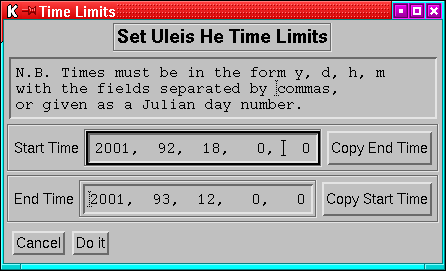
Figure 19:
The menu for entering the time range for a dataset.
|
|
If a single number greater than 2 million is entered, the it is
assumed to be a julian day, if multiple numbers are used, then a year,
day etc. form is assumed. If a single number less than 2 million
is entered, it is assumed to be a year (with a warning). If a 2-digit
year is used it is assumed to be in the range 1950 to 2050.
12.2 Archive types
Applies to RATE, SPECT, PAD and DYN_SPECT datasets.
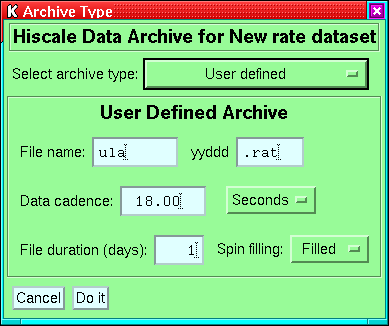
Figure 20:
The menu for setting HISCALE archives.
|
|
The basic pre-defined archives are selected via the ``Select archive
type'' droplist at the top of the menu. If you are using some special
type of data, then you will need to select ``User defined'' and
then set the various fields. The defaults are taken from the previously
set archive type. A couple of points to note: (1) The file duration
should be set to the maximum possible for the file class, (2) The
spin filling refers to whether all the spin groups are used (as in
ULA and CUAF files) or only the first spin group (as in UAF files).
Since it is now possible to display HISCALE and EPAM on the same plot,
the selections are independent for the two instruments.
12.3 Sectoring
Applies to RATE, SPECT and DYN_SPECT datasets.
Figure 21:
The menus for sector selection. The upper menu
is used when no streams are defined, or if the streams have different
numbers of sectors. The lower version is used when all streams have
the same number of sectors (the actual number of toggle buttons depends
on the number of sectors).
|
|
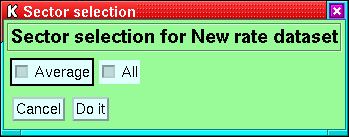
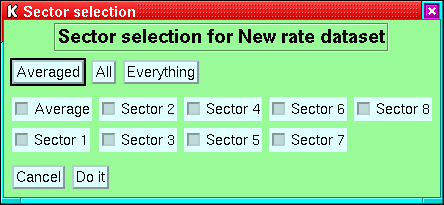
For datasets where all the streams have the same number of sectors,
an arbitrary combination of sectors can be selected (e.g. if you really
want to you can plot the average, sector 1 and sector 3). If the selected
streams have differing numbers of sectors, then only sector averages
or all sectors can be selected at the dataset level (however detailed
selections can be made for the individual streams--the control for
this is very similar to that for datasets). If you try to set sector
selection before you have attached any streams to the dataset, then
you will only have the choice of average or all. At present there
is no phase-angle sorting of the sectors.
The ``All'' button in the menu selects all the individual sectors,
and NOT the average. The ``Everything'' button selects all the
individual sectors and the average.
12.4 Averaging
Applies to RATE, PAD and DYN_SPECT datasets.
Figure 22:
The menu for setting averaging intervals. The
settings here will generate overlapping 15-minute averages every 5
minutes.
|
|
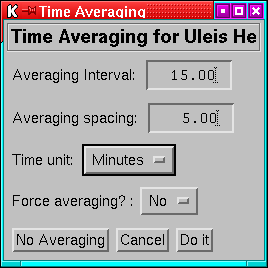
This allows you to set an averaging interval for the current dataset.
As with earlier versions, overlapping averages are possible. If the
spacing is set to zero, that is equivalent to setting it equal to
the averaging interval (i.e. non-overlapping averages). Unlike earlier
versions ``gappy'' averages are possible; this is likely to be
of most use in PAD datasets where (for example) using hourly averages
would smear out what you wanted to see, but 5-minute averages would
overwhelm you with data; in that case 5-minute averages every hour
may be what you need.
If the averaging interval is less than the cadence of the datset,
averaging will not take place, unless the forced average option is
selected.
12.5 Markers
Markers are user-defined labels that can be added to any dataset.
They can be used (for example) to accurately place timing marks on
a plot or to place a box around a feature to which attention is to
be drawn.
A marker has a number of vertices, and optionally a text string. The
details vary according to the dataset class, but in essence a marker
can appear on any or all panels. At present; in activity datasets,
markers are only supported in the main panel, and they are not available
on matrix histograms.
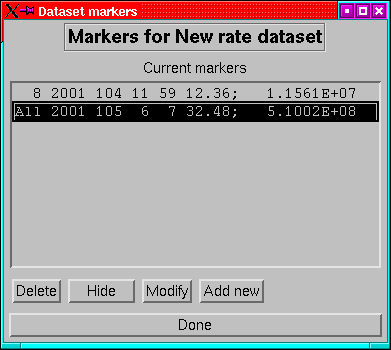
Figure 23:
The marker editing menu for a dataset.
|
|
The dataset markers menu (Figure 23) is accessed
from the markers item in the postprocessing menu. This lists defined
markers by panel, location of first vertex and (if applicable) text
string. A marker can be deleted, hidden or edited or new markers can
be added.
Figure 24:
The menu for editing an individual marker.
|
|
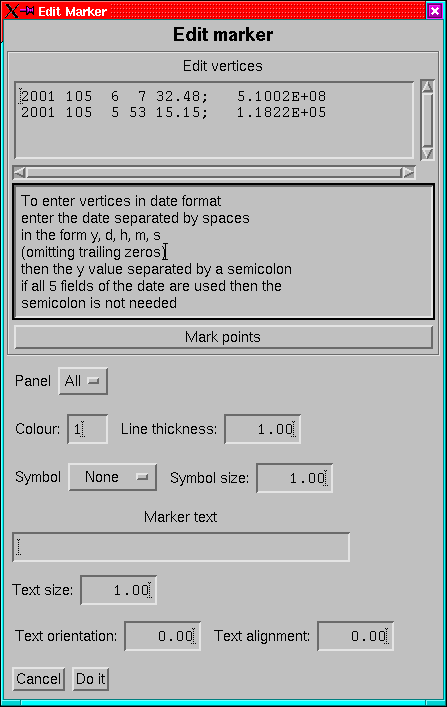
The modify and ``add new'' options will generate the marker menu
(Figure 24). For most datasets, vertices can either
be entered manually in the text box (when an axis is a time-axis,
then the coordinate can be entered in year, day, h,m,s format by follwing
the displayed instructions) or marked using the locator tool (this
is not possible for PAD or MATRIX datasets as the page number cannot
be determined, thus the panel is not uniquely defined).
When applicable, the panel to which to add the marked can be set.
For SPECT and PAD datasets, this corresponds to the panel number in
the dataset. For RATE and DYN_SPECT datasets, the panel is defined
in terms of the order in which they are plotted. In either case, if
the panels are re-arranged the markers do NOT move to the new panels.
For PAD and MATRIX dataset, there is also a time panel setting which
can likewise refer either to a single time panel (page for MATRIX,
column for PAD) or everything.
The colour, thickness, symbol and symbol size are just the standard
IDL settings (colour of course using the IDL_HS colour table). The
vertices are always joined even when a symbol is used.
When text is added to the marker then it is located at the first vertex
and the remainder are joined. The size, orientation and alignment
can be set. The colour is the same as the line joining the other vertices.
13 The data editor
The data editor is a tool for making simple edits to the actual values
in the raw data. The reason for this is to allow the user to remove
closed-cover calibration features, telemetry problems etc. It operates
on RATE, SPECT, PAD and DYN_SPECT datasets; MATRIX datasets generally
have too few points and are also generally used a a qualitative display.
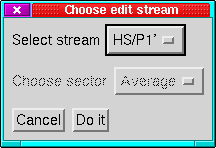
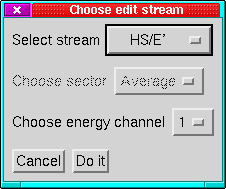
Figure 25:
The menus for selecting the stream to work on in
the data editor. Left: for rate or PAD datasets, Right: for SPECT
or DYN_SPECT datasets.
|
|
The data editor is invoked by clicking the ``Data Editor'' button
on the dataset main menu. Do not confuse this with ``Edit Streams''
which is to add or delete streams from the dataset. When you call
up the editor, you will first be asked which stream from the dataset
you wish to use as the template (Figure 25). You need
to select which stream and in the case of sectored streams which sector
as well. For Spect datasets you also need to select which energy channel
to use.
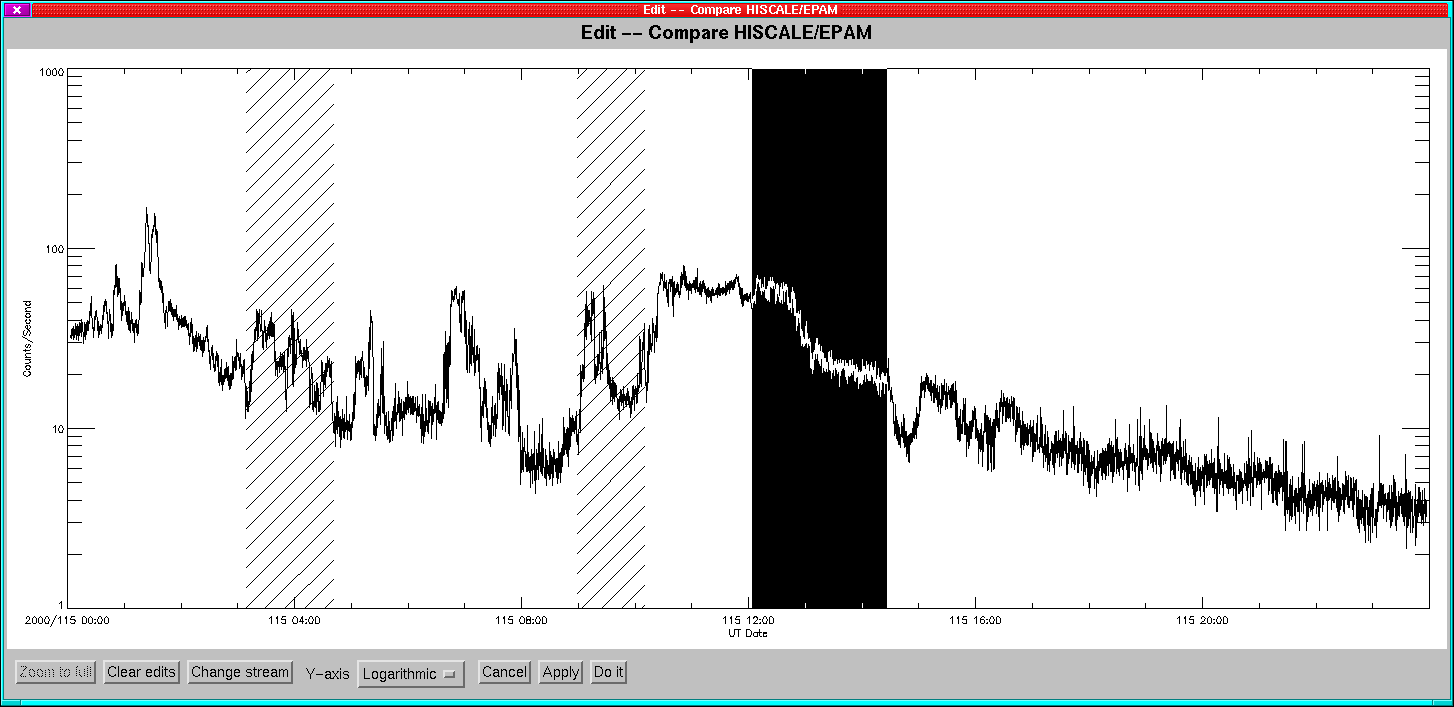
Figure 26:
The main data editor window with 2 committed edits
and a region selected.
|
|
When you have selected a stream, it is displayed and you can make
the edits.
On the display canvas, the mouse buttons have the following effects:
- Button 1:
- (Usually left button), starts a selection. The location
of the pointer is translated to a time and this marks the edit start.
Motion events on the a canvas are enabled, so that when the mouse
is moved, the area between the marked location and the current pointer
position can be shown inverted. If the left button is clicked a second
time, the previous start location is forgotten and a new selection
is started.
- Button 2:
- (Usually centre button), cancels a selection.
- Button 3:
- (Usually right button), completes a selection. This sets
the current pointer location as the end point of the selection. The
edit-type menu is then displayed to determine the edit type.
Figure 27:
The menu for choosing the type of edit to make.
|
|
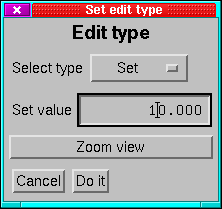
This menu (Figure 27) allows you to select the type
of edit or to zoom the view to the region selected. There are 4 type
of edit:
- Cut:
- Simply remove the data for the selected interval and leave a
gap in the time-series (For most purposes this is the most suitable
edit).
- Zero:
- Set the rates to zero through the selected interval.
- Set:
- Set the rates to a user-selected value through the selected
interval.
- Add:
- Add a user-selected value to the rates in the selected interval.
After an edit has been committed, the region is marked by a hatched
box. Edits are not actually made at this stage.
If you click on the zoom button, then the region of the selection
is expanded to fill the window. The cancel button causes the edit
to be abandoned.
- Other_buttons:
- At present buttons 4 & 5 (wheel mouse wheel rotations)
are ignored.
The following operations are available via the buttons at the bottom
of the panel:
- Zoom to full:
- Revert to showing the entire time range of the stream.
- Clear edits:
- Delete the list of edits.
- Change Stream:
- Change to a different stream. This clears all edits
made up to this point and reverts to the stream selection menu.
- Y-axis:
- Choose whether to show the stream on a log or a linear scale.
Not available for streams which cannot be plotted on a log scale (e.g.
magnetic field components).
- Cancel:
- Exit the editor without applying the currently committed
edits.
- Apply:
- Apply the currently committed edits, and continue editing.
Note that once edits have been applied they cannot be undone.
- Do it:
- Apply the currently committed edits and exit the editor.
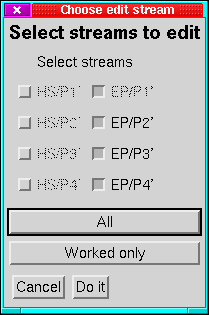
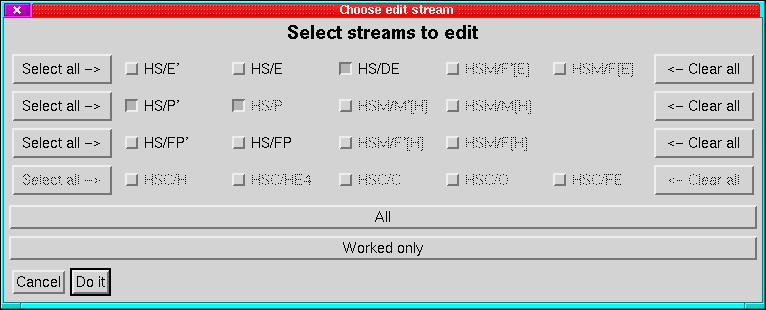
Figure 28:
The menus for selecting which streams to edit.
Left: Rate dataset, Right: SPECT or PAD dataset.
|
|
On selecting ``Apply'' or ``Do it'' you will then be asked
which streams the edits should be applied to. There are two distinct
menus (Figure 28) depending on whether the dataset
is divided into panels or not.
In either case, only those streams sharing a raw time axis with the
stream on which you made the selections can be modified. The streams
to modify are selected by the toggle buttons in the menu, all streams
are shown but only those with the correct time axis can be selected.
The stream on which the edits were defined cannot be deselected. The
``All'' and ``Worked only'' buttons below the stream list
allow you to select all applicable streams or only the one on which
you made the selection.
For hierarchical datasets (SPECT and PAD) the toggles are layed out
with one row for each panel of the display. In addition there are
two columns of buttons; one on the left ``Select all ->'' which
selects all applicable streams in that panel, and one on the right
``<- Clear all'' which allows you to deselect all streams in the
panel (other than the one you made the selections on). For PAD datasets
it is not a good idea to apply edits to only a subset of streams if
the edits include cuts (zeros, sets and adds are OK) because this
will break the time-axis matching and make the dataset undisplayable
without averaging.
The ``Cancel'' and ``Do it'' buttons have their normal effects.
WARNING: If you use the editor before you have created
a regular plot window, you may find that the visual properties that
you selected are not honoured, and worse than that they will be broken
until you exit IDL and re-enter. This problem may have been resolved
in IDL 5.4 (I've had apparently contradictory results) but is present
in 5.2. This is particularly the case if you select an undecomposed
true colour visual (idl_hs -T or HS_BITS=24).
The only fix for this is to display a dataset before editing.
14.1 Plot settings
Normally the plot settings are global to the environment, but a dataset
can have its own plot settings if needed. The plot settings controlled
from the main menu ``Plot configuration'' button is the global
one, those controlled from the dataset menu ``Plot settings''
menus are specific to the dataset. If a dataset has its own plot settings
then the global settings are ignored entirely (i.e. it is not a setting
by setting control).
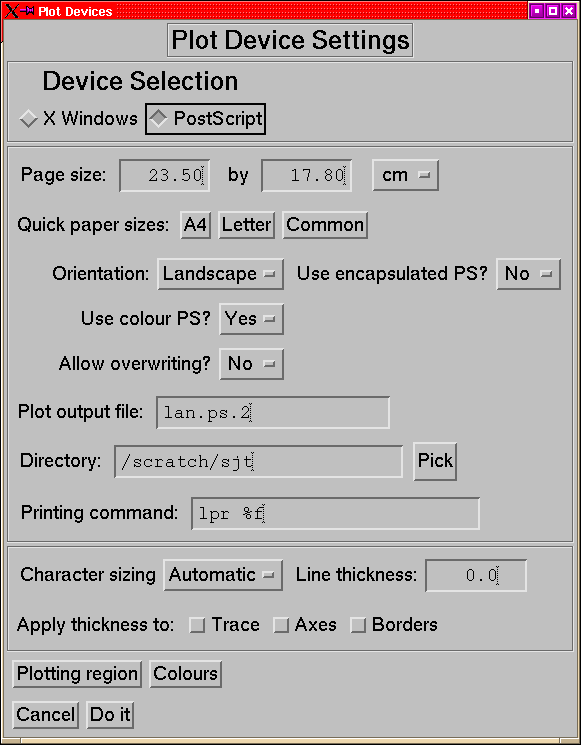
This is the tool for configuring the plot devices.
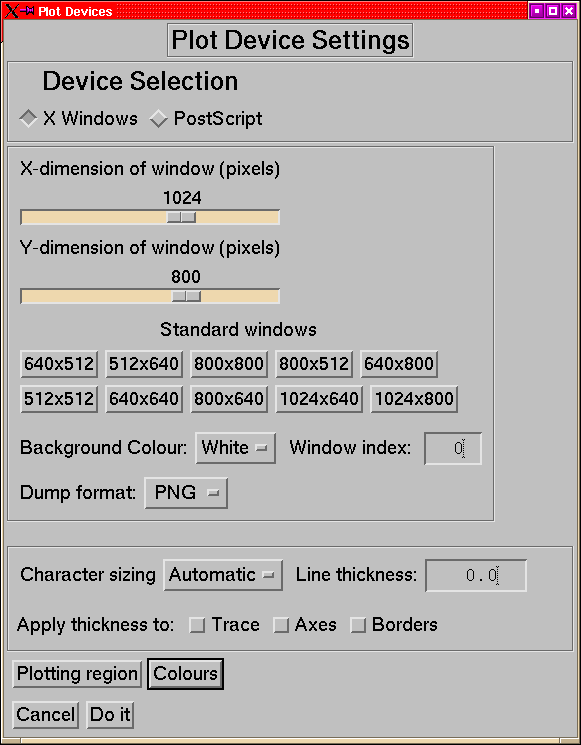
Figure 29:
The plot setup menus for the X and PS devices.
|
|
- Device Selection:
- Chooses whether to set up the X or PostScript
output device.
- ``Window Sizing'' [X]
- The size of the plot window for X
can be set either by the sliders (which allow any size up to the current
screen size) or by selecting one of the convenient standard sizes
- note that for small displays the largest of these may be bigger
than your screen.
- Background Colour [X]
- You can either plot with a black background
and white lines (the IDL default behaviour) or with a white background
and black lines which is often easier to look at.
- Window_index [X]
- Not often needed, but if you have a plot in
a plot window which you don't want to overwrite then you can force
IDL_HS to use a new window this way.
- Page size [PS]
- Set the size of the drawing area for the plot.
The unit can be either centimetres or inches. The pre-defined sizes
are set up to be suitable for printing on A4, US Letter or either.
- Orientation [PS]
- Select whether to print in landscape or portrait
page orientation, if appropriate the X and Y sizes of the printing
area are swapped. Note that for Encapsulated PostScript the size swap
is all that happens since real landscape EPS files are a recipe for
trouble.
- Use colour [PS]
- By default IDL uses monochrome PostScript files.
This option allows you to generate colour PS files. Note that printing
colour files on monochrome printers can take a VERY long time.
- After plotting [PS]:
- This determines the behaviour of IDL_HS
after a hard copy has been generated. If this is set to retain, then
the device will remain set to PS, whereas of it is set to revert,
then the device is set back to X after the plot has been generated.
Using the ``Hard Copy'' button on the main menu or on a dataset
menu will force ``retain''
- Use encapsulated PS [PS]:
- This should be familiar, but when
it is enabled, then the blank space in the menu is filled with another
droplist offering you the choice of whether to add a pixmap to the
EPS file. If you are only planning to use the EPS file for LATEX,
LYX or xfig you do not need this, but StarOffice and other even
dumber word processors need this to produce any sort of preview (and
it's a pretty lousy preview too).
- Allow overwriting [PS]
- If you have given an explicit filename,
but that file already exists, then this allows you to select whether
to overwrite it or to use the default filename instead.
- Plot output file [PS]
- Select the name of the output file (the
default is lan.ps.n where n
is the lowest number that doesn't already exist.
- Directory [PS]
- Select the directory in which to put plot files.
- Printing Command [PS]
- The command to use to print a PostScript
file, the token %f represents the filename. When Encapsulated
PS is selected, then this is replaced by the box to select the preview
command.
- Character Sizing
- By default IDL_HS chooses its character size by
looking at how many panels there are on the plot. However if you want
you can force it to use either the smaller or larger size.
- Line thickness:
- This line thickness option is intended as a means
of making plots with bolder lines than normal for publication or presentation
purposes (that is why it's here not in the dataset layout options).
The thickness is specified as a floating point number which is interpreted
as points in PostScript and pixels in X (therefore the results will
look very different on the screen and on the page). The thickness
setting can be applied to any combination of: the plot traces, the
axes, and the boxes drawn around the page sections; there is no way
to set 2 different non-default thicknesses5.
- Plotting region
- Brings up a menu to set what part of the window
or page to use. This is probably largely obsolete and was introduced
in very early versions as a number of devices didn't work too well
very close to the edges.
- Colours
- Brings up a menu to allow you to change the colours used
for coloured traces.
14.2 Examine File
The HSIO browser allows you to open an HSIO file and examine the contents
in detail.
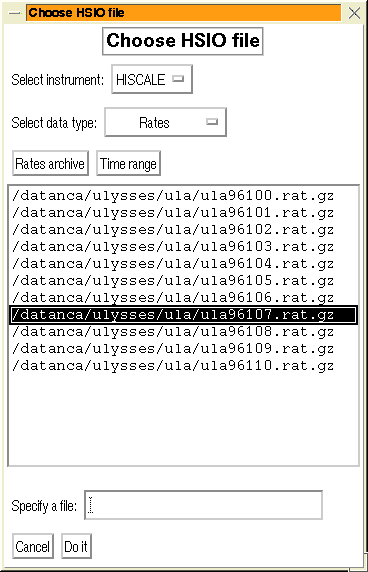
Figure 30:
The menu for choosing a file for the HSIO browser.
|
|
The file to look at is selected via a menu (Figure: 30)
which allows you to pick a file from a list or to specify an explicit
file. The files displayed in the list are controlled by the selection
of the instrument and the the type of data. The selection is further
limited by the time range which may be specified. For rates data an
archive type may also be given. If a current dataset is defined at
the time, then the time range and archive type are inherited from
that.
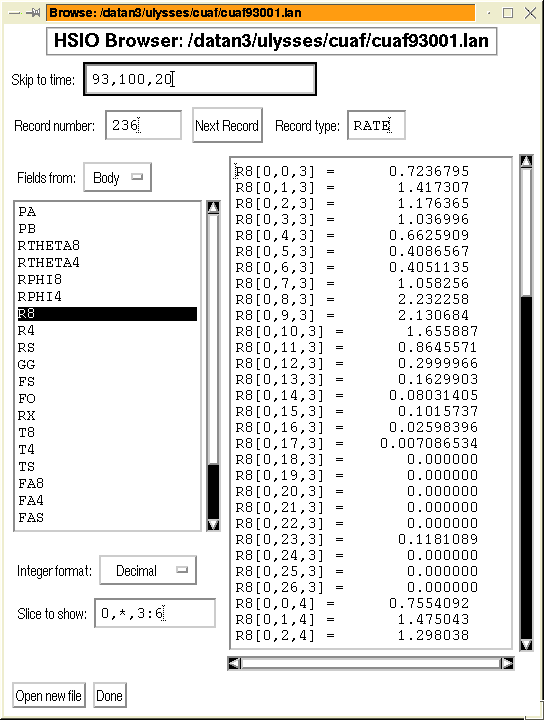
Figure 31:
The main window of the HSIO browser tool.
|
|
Once the file has been opened, then the main HSIO browser window is
opened (Figure: 31).
The top few items in the window allow you to select which record to
view. If the file has a map then the ``Skip to time'' item allows
you to find a record shortly before the time you specify, if there
is no map file then the option is not displayed. The record number
field serves 2 purposes, firstly to indicate the current record number
and secondly to allow you to go to a specific record. The next record
button advances the file to the next record. The record type field
is not writable but just indicates the type of the current record.
The left column of the main body of the window allows you to select
which values to display. The ``Fields from'' droplist lets you
choose whether to look at the record header or at the main body of
the record. The list below that allows you to then select the particular
field to display. The integer format allows you to select how integer
fields will be displayed, this is useful because many of the housekeeping
fields are actually byte values replicated 4 times so the byte display
options make it possible to see what's going on. The slice allows
you to select a part of the array to display, it is a standard IDL
subscripting expression (the parentheses or brackets are optional,
the interpreter is smart enough to decide if it needs to add them).
The ``Open new file'' and ``Done'' buttons at the bottom should
be self-explanatory.
As a note to the technically-inclined, the HSIO browser is actually
implemented as a dataset class, but with some restrictions: It never
has any streams attached (although by inheriting the generic_dataset
class it has the hooks for them), there is never a reference to it
in the dataset list of the hs_container object (it does though have
a reference to the container) and it is destroyed when its display
window is destroyed. [In the documentation comments I've tried to
refer to it as a pseudo-dataset rather than a dataset].
The following section is a sort of FAQ, a few random points that have
cropped up along the way.
When a menu is called from an object constructor it has to be modal
as it is not safe to allow the constructor to return before the menu
has exited. The main cases where this is used are:
- The stream addition menus.
- File selectors.
- Alert, query and error dialogue boxes.
Note that if a pulldown menu is activated while waiting for a modal
menu to appear, this is very likely to crash IDL (this is an IDL or
Motif bug not an IDL_HS bug).
The default backgrounds for those channels which have backgrounds
defined are set in the IDF file. However when a stream is defined,
then a copy is made of the background levels. This has 2 consequences:
- If you change the IDF file for an instrument, the backgrounds (and
most other properties) of already-defined streams will NOT be changed.
- You can change the background of a particular stream individually.
The background setting tool it to be found on the stream menu of the
dataset (Add/Delete stream). To access it you need to select a particular
stream and then the background button will be enabled.
A. UDS data and its specification.
Originally UDS stood for ``Ulysses Data System'',
a set of summary data from each of the Ulysses instruments available
from ESTEC. However the nature of the UDS formats (ASCII files with
a time and then a series of data) lends itself to extension, so for
the purposes of IDL_HS, UDS can be taken to mean ``User
Defined Scheme''.
The UDS classes are described by a specification file, which contains
the information necessary to read the data from the file.
Each line consists of a colon separated list of items.
- Line1:
- Is the general specification, the fields are
- The spacecraft. (e.g. ULYSSES)
- The instrument (e.g. COSPIN-HFT)
- How many channels are there (including unused fields that must be
read)
- The cadence of the data in seconds
- The format of the time field, recognised forms are:
- YDHMS
- - Year, day, hour, minute, second
- YDHM
- - Year, day, hour, minute
- YD(H)
- - Year, day, (hour) [Day is floating and hour is redundant]
- JD
- - Julian Day
- AE
- - ACE Epoch
- E1950
- - Seconds after 1950.0 (Ulysses epoch)
an optional /m indicates that the times are at the mid-point
of the interval while /b indicates both limits are present
otherwise the time is assumed to represent the start of the interval.
- The unit of the values
- The missing or bad data flag
- Number of lines of header information.
- Line2:
- The filename and how long the file is:
- The duration of the file in days
- The filename in which the data are found. The following tokens are
used: %y 2-digit year, %Y 4 digit year, %d
3-digit day, %q 1-digit quarter (1=Jan-Mar etc).
- Lines3-end:
- The specification of each channel, inapplicable fields
(e.g. energies for magnetic field data) may be left blank.
- Channel name
- Lower energy bound
- Upper energy bound
- Description
- N sectors
- Unit if different from that in the header.
A channel name of DUMMY indicates values that are not used,
but which need to be read. A channel name prefixed with an asterisk
means the channel is not directly used but needed (e.g. quality flags).
The files are called <name>.SPEC, N.B. upper case
SPEC on Unix systems. The default spec files are for all
the particle and plasma datasets in the UDS plus the magnetic field
files from the ACE Science Center, and the UMAG files used by MAGMERGE.
There is now a wizard available to generate SPEC files for UDS datasets.
This can be accessed from the IDL> prompt, by giving the
command
-
- uds_wizard
This will then generate a series of menus which will lead you through
the process of defining a new UDS instrument type.
Figure 32:
The various stages of the UDS specfile wizard.
|
|
Figure 33:
The channel definition pages of the UDS specfile
wizard. Upper: most channels; Lower: Final channel.
|
|
Figure 32 shows the 4 stages of defining the global properties
of the instrument. Figure 33 shows the panel for defining
the individual channels.
By default the generated spec file is saved in ${HOME}/uds_specfiles,
unless an alternative has been set in the UDS_SPEC_PATH resource
setting.
IDL_HS version 4 has several levels of default settings for IDF files
and for plot settings.
The ultimate level of fall back is the hard-coded defaults which are
used if no values are found anywhere.
These values may be overridden by either a user's own resource file
or by a system-wide resource file. Both of these files allow the same
items to be specified. The system file is read first, followed by
the user's file. Except for path settings (see below), in the case
of multiple settings the last one encountered is used.
On all systems the system file is: ${IDL_HS_DIR}/Data/idl_hs.rc
or equivalent. On Unix and Unix-like systems the user's file is ${HOME}/.idl_hsrc
while on VMS it is HOME:idl_hs.rc.
Resource specifications are given 1 per line and have the form:
-
- RESOURCE = value
The resource name is not case-sensitive, but the value is. Comments
begin with the hash (#) symbol. If the token ${text}
is encountered in a value, then it is replaced by the value of the
environment variable (for example if the string /scratch/${USER}
is encountered when reading a resource file and you are user sjt,
then the value will be /scratch/sjt.
Path settings are handled somewhat differently from other resources
in that multiple values can be concatenated. If you want paths to
be concatenated to the existing defaults, then use a + sign
at the start to prepend the extra path then use ++. For example:
-
- HS_RATE_PATH = /data/hiscale
will set the HISCALE rates search path to /data/hiscale,
whereas:
-
- HS_RATE_PATH = +/data/hiscale
will add /data/hiscale to the end of the existing path and
-
- HS_RATE_PATH = ++/data/hiscale
will add it to the beginning of the path. In either case the values
may be path lists, separated by colons on Unix and commas on VMS.
The data directory contains a resource file template (idl_hs.rc-list)
which contains the full list of resources, the types of values they
can contain and default values. This can be parsed with the rc_maker
procedure.
To set up a system resource file use:
-
- rc_maker, /system
For a user resource file use:
-
- rc_maker
or
-
- rc_maker, file=<filename>
if you want to check the results before replacing your file.
For each known resource value you will be presented with a menu allowing
you to change the value (the default is the value currently defined
or else a default defined in the template). You have the option to
apply the resource in which case it will be written out to the file,
or to skip it which means that it will not be written (for example
if you are creating a personal file and wish to keep the system values
for a particular resource).
The hard defaults are given in square brackets. The first group of
options, should be set by the administrator in the system-wide resource
file to suitable values for the local system.
- HS_RATE_PATH
- Search path for HISCALE rates data, should
contain your usual ULA and averaged data directories. [current directory]
- EP_RATE_PATH
- Ditto for EPAM. [current directory]
- HS_TRK_PATH
- Search path for HISCALE track and PHA matrix
data. [current directory]
- EP_TRK_PATH
- Ditto for EPAM. [current directory]
- HS_MFSA_PATH
- Search path for HISCALE MFSA data [current
directory]
- EP_MFSA_PATH
- Ditto for EPAM [current directory]
- ULEIS_PATH
- Search path for ULEIS HDF files. [current
directory]
- UDS_PATH
- Search path for UDS files. [current directory]
- UDS_SPEC_PATH
- Search path for UDS spec files (other than
the standard data directory which is hardcoded in) [${HOME}/uds_specfiles]
- XFLARE_PATH
- Search path for X-ray flare listings. [current
directory]
- HS_IDF
- The filename of the HISCALE IDF.DAT file. [IDF.DAT]
- EP_IDF
- Ditto for EPAM. [IDF-EPAM.DAT]
- HS_PHA_VERSION
- The PHA matrix version for HISCALE [9]
- EP_PHA_VERSION
- The PHA version for EPAM [11]
- HS_MFSA_IDF
- The filename for the HISCALE MFSA energies
etc. [mfsa_energies.dat]
- EP_MFSA_IDF
- The filename for the EPAM MFSA energies etc.
[mfsa_energies.dat]
- PLOT_DIR
- A directory to which to write plot files. [current
directory]
- PS_PRINT
- The print command for spooling normal PostScript
files (the token %f is used to represent the filename).
[lp %f or print %f]
- EPS_VIEW
- The command to display Encapsulated PostScript
files. Ending this with an & character will cause it to
be run in the background. [gv %f &]
The remaining options will not normally need to be set in the system-wide
resource file, but may be useful for users with specific preferences
or requirements.
- AVERAGE_UNIT
- Set this to one of days, hours, minutes or
seconds to set the default unit for specifying averaging intervals.
[hours]
- MATRIX_COLOUR_TABLE
- Set the default colour table for matrix
datasets. [0]
- PIXMAP
- Set this to yes if your X-server doesn't support
backing store (typically this is a problem on older X-terminals),
then IDL will use a pixmap to do the backing store. [no]
- SMALL_FONTS
- Set this to yes to use smaller fonts for the
widgets. Useful if you have a small screen. [no]
- X_BACKGROUND
- The background colour for X windows window
(should be black or white). [black]
- X_SIZE
- The size of the window in pixels, should be two
integers separated by spaces. [640 512]
- PS_SIZE
- The size of the drawing area on the PostScript
page, two floats separated by spaces. Units are specified by the PS_UNIT
resource. [23.5 17.8]
- PS_UNIT
- The units for the PostScript page size (should
be cm or inch). [cm]
- PS_ORIENT
- Whether the PostScript page should be landscape
or portrait by default [landscape]
- PS_COLOUR
- Whether PostScript should be colour by default.
[no]
- PAD_LAYOUT
- The number of columns and rows in which to layout
PAD plots , two integers [6 6]
- HTML_VIEWER
- Viewer for HTML to view the help system [${IDL_HS_DIR}/bin/nshelp]
(this script is a wrapper for the -remote option in Netscape).
- SAVE_DIR
- A directory to which saves and restores are to
be made. The same directory is used for saving datasets and other
things (such as PAD channel lists) [current directory].
Because of the way in which the file-selector widget works, it is
slightly cleaner to add the trailing slash to the directory name.
- QUIET
- If this is set to YES then all compilation messages
from IDL will be suppressed. [no]
- START_MENU
- If this is set to NO then the top-level menu
will not be started automatically, this might be a good idea if you
are regularly connecting over a slow link. [yes]
IDL_HS Version 4: User's Guide
This document was generated using the
LaTeX2HTML translator Version 2K.1beta (1.47)
Copyright © 1993, 1994, 1995, 1996,
Nikos Drakos,
Computer Based Learning Unit, University of Leeds.
Copyright © 1997, 1998, 1999,
Ross Moore,
Mathematics Department, Macquarie University, Sydney.
The command line arguments were:
latex2html -no_subdir -split 0 -show_section_numbers /tmp/lyx_tmpdir24851b1pYaF/lyx_tmpbuf24851EsNhj8/Uguide.tex
The translation was initiated by James Tappin on 2002-07-17
Footnotes
- ... data1
- The MFSA rates and spectral data now use Doug Patterson's incident
energy values in place of the old ``deposited energies''--the
latter can still be used as an option.
- ... dataset2
- Basically everything except its channel list.
- ... dataset3
- Apart from UDS and MAG streams which have fixed units of display.
- ... path4
- This is a technical requirement, in that the mechanism for reading
the amag files is the same as that used by UDS rate streams.
- ... thicknesses5
- It is possible that setting !p.thick at the IDL>
prompt and then using another setting here could achieve this effect
- I've not tried it.
James Tappin
2002-07-17